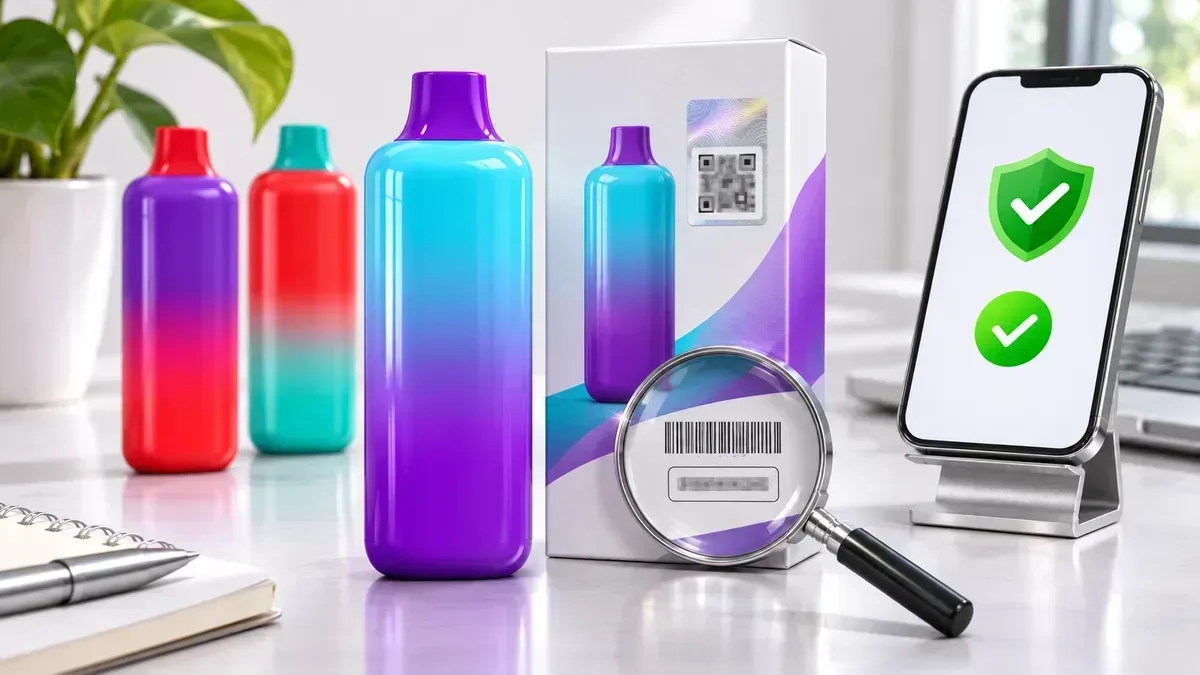
Have the device and box in front of you? Start with three checks: confirm the exact model, inspect every packaging label, and take clear photos. Use those photos when you contact WOTOFO about anything that looks out of place. WOTOFO NEXBAR 7000 Puffs: Product Authenticity and Batch Identification begins with knowing which numbers to look for.
A verification code, serial number, and lot number can look alike, even when they serve different purposes. Moreover, regional packaging and unfamiliar verification addresses can make a quick comparison misleading. Keep the box nearby as you check each identifier, and save the unique security code for a private check.
WOTOFO NEXBAR 7000 Puffs Authenticity and Batch Identification Checklist
Inspect the box before altering a label
Start with the product name on the front panel. WOTOFO calls the model nexBar 7k on its product page and describes the puff count as up to 7000. Next, check the model name on the device wherever the manufacturer prints it. A prominent puff count alone gives you little to compare.
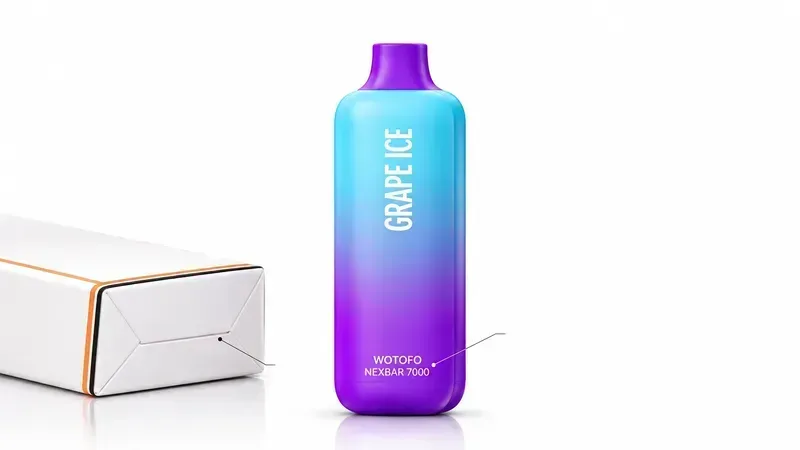
- Match the WOTOFO and NEXBAR 7000 branding across the box and any visible device markings.
- Turn the box over and inspect all six sides, then look at both closure flaps and their seals.
- Find any security label and look separately for markings labeled LOT, BATCH, or S/N.
- Photograph the full box and take close-ups before scratching a panel, lifting a sticker, or removing wrap.
Next, compare the flavor name, nicotine information, and printed capacity claims across the box and device where visible. Check the barcode, regulatory markings, and importer details when present. For instance, a flavor mismatch between the box and the device deserves a photo of both names. Record how each name appears so support can check the exact variant.
Also, look for blurry lettering, uneven print, lifted sticker edges, or a seal that appears disturbed. Good lighting can help you distinguish a damaged label from poor printing. If a barcode or warning label covers other text, photograph the overlap from two angles. Keep the label in place so support can see how it arrived.
Record the authenticity and batch findings separately
A verification check asks whether the official system recognizes a security code. Meanwhile, a batch or lot number connects multiple units to a shared production group. Your notes might say verification pending alongside lot marking found on the bottom panel. Both observations can help WOTOFO investigate the same unit.
Finally, compare your notes with the verification result before drawing a conclusion. If the result leaves an obvious mismatch unexplained, contact official WOTOFO support with the photos and purchase details. Point out the specific discrepancy so the reviewer can find it quickly.
Where to Find NEXBAR 7000 Packaging Labels and Numbers
Follow the panels, flaps, and wrap
Begin with the back panel, where you can look for fine print and labels beside larger blocks of text. Then turn to the bottom and both side panels. Check the top panel and look along each closure flap, including any fold you can inspect without tearing it. Use a light at an angle to reveal faint ink or shallow markings.
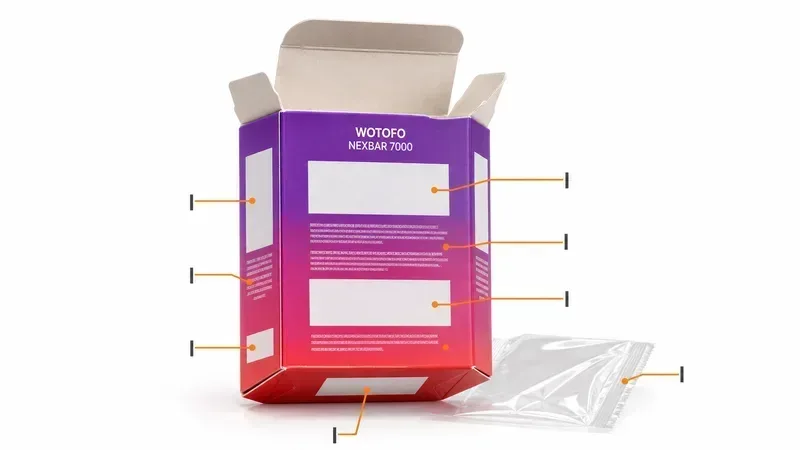
Additionally, inspect the shrink wrap and any separate authenticity sticker before removing either. Note whether each label sits on the wrap, directly on the carton, or across an opening. For example, a sticker on the wrap can get discarded with it. Photograph the label in place and keep the wrap with the box if you remove it.
The exact position of a label can vary by region or production run. For an exact placement comparison, ask WOTOFO for a current, confirmed example for your market or run. Check which market or run the example represents before applying it to your box. That detail matters when your only comparison is a photo from a seller in another country.
Read the words next to each marking
Some markings stand out immediately, while others blend into the carton or device. In particular, a security feature may appear as a scratch-off panel, a QR code, or a sticker with instructions. A lot marking might look like a short alphanumeric string in plain ink. Look for a nearby label that explains what the string represents.
- Security label. Look for scratch-off instructions, a QR code, or text about checking authenticity.
- Barcode sticker. Capture the bars, the human-readable digits, and any product or distributor label beside them.
- Production marking. Watch for stamped, inkjet-printed, or laser-marked letters and digits, including faint characters near an edge.
- Market label. Record any local warning, distributor name, or importer details, including its location on the box.
Next, compare markings on the box, inner packaging, and device where the same identifier appears more than once. Check the label captions first, then compare the characters. For instance, two fields marked LOT with different values are worth documenting. A serial number and a lot number can legitimately differ because they track different things.
Finally, note any regulatory, importer, or distributor sticker that appears to have been added for local sale. Its presence alone gives limited evidence about authenticity. Include it in your photos, especially if it overlaps an original marking. WOTOFO can use your country of purchase and the label details to assess the packaging together.
Verification Code vs Serial Number vs Batch or Lot Number
Identify what each number tracks
A verification code is a security credential for an authenticity check. The manufacturer may assign it to a single retail unit and conceal it under a scratch-off coating. Once revealed, someone with a clear photo could copy it. Therefore, keep the code private and cover any QR code that might contain it before sharing photos publicly.
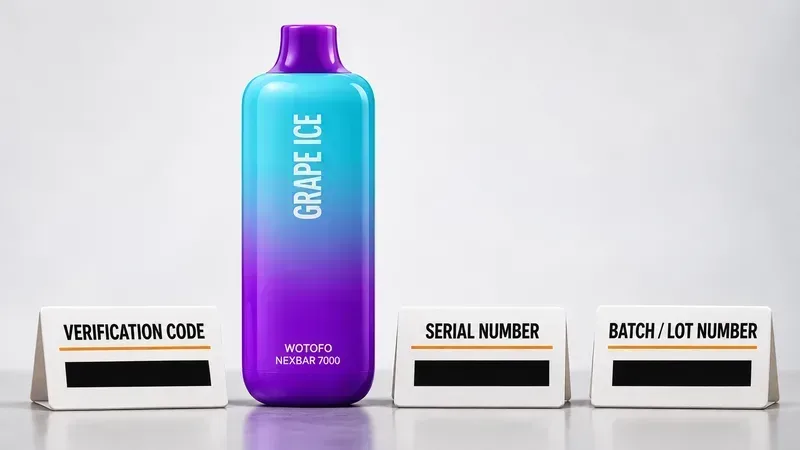
A serial number identifies an individual unit. Customer service may use it to look up records, investigate a complaint, or handle a warranty request. However, it may have no public lookup function. If the field says S/N and the verifier asks for a security code, check the packaging instructions before entering anything.
A batch or lot number is a shared identifier that links units to a production group. Manufacturers use it for traceability, quality investigations, and communications about affected lots when needed. For example, several units could share one lot number while each carries its own serial number. Record the lot separately so support can identify the relevant group.
Copy the text exactly as it appears
A barcode or QR code can hold a product reference, a web address, or an identifier. Therefore, its shape tells you little about what it contains. Read the text beside it and note how the packaging tells you to use it. If the purpose remains unclear, describe the marking to support using its position and surrounding words.
For example, imagine a label that reads LOT 00A-O7. The first two characters after LOT are zeros, and the character after the hyphen is a capital O. A hurried transcription could easily swap one for the other. Use the original photo to check before you send your notes.
- Preserve uppercase and lowercase letters exactly as printed.
- Keep leading zeros, hyphens, and any visible spacing in your written record.
- Check similar characters such as O and 0, I and 1, or S and 5.
- Mark an unclear character as uncertain and attach a close-up that shows it in context.
Finally, save the field name alongside its value and location. A note such as LOT, bottom panel beside barcode tells support where to look. If two labels show different strings, record both captions and both locations. Keep the unique verification code out of any notes you plan to share publicly.
How to Perform a Safe WOTOFO Product Verification
Confirm the destination before entering the code
Start with WOTOFO’s main site at www.wotofo.com or support materials you confirmed independently. Look for an authenticity check or use the contact information published by WOTOFO. The manufacturer’s FAQ and warranty policy list support@wotofo.com for product support. If you cannot find a verification page for your packaging, ask support which method applies.
Meanwhile, treat a search advertisement, shortened address, QR destination, or reseller link as an address to verify first. A brand name in the page title can make an unfamiliar site look official. Check the full address in the browser bar, including the spelling and the ending, such as .com. Read it again if the page redirects.
- Check whether the final domain matches the official address or a domain that WOTOFO confirms.
- Look for extra words, swapped letters, unexpected domain endings, or redirects to a different site.
- Confirm that an official WOTOFO page links to the verifier, or ask support to confirm the destination.
- Check for HTTPS and leave the page if the browser shows a connection or certificate warning.
However, HTTPS and a padlock tell you that the connection to the displayed site uses encryption. A lookalike site can also use HTTPS. If a label points to an unfamiliar domain, photograph the label and save the address privately. Then ask WOTOFO to confirm the final domain before submitting your code.
Keep a private record of the first result
Once you confirm the page, enter the code in private. Read its instructions for spaces or hyphens, and compare each character with the original label. If you need to uncover a scratch-off panel, do so after you photograph it intact. Keep the carton nearby in case the page asks for product details.
Next, record the date, the exact result message, and any product details the page displays. Note whether it reports a previous check and whether it gives a date or count. Also, record when you made your first submission. That timing can help support distinguish your own activity from an earlier check.
If you take a screenshot, inspect it for the code before sharing it. The result, address bar, or QR image may reveal the identifier even after you cover the input field. Therefore, save the original privately and use a redacted copy for routine correspondence. Compare the displayed model or variant with the packaging before you file it away.
What Missing, Unreadable, or Rejected Codes Can Mean
Work through the most likely explanations
A missing security label, unreadable code, rejection, or previous-check warning calls for a closer look. Each result gives you a different clue to document. For instance, torn shrink wrap may explain why a sticker is missing, while worn ink may make a character ambiguous. Keep a photo of the area even if the code itself is gone.
Additionally, ask WOTOFO about documented changes to packaging or verification. Older stock or a regional release may use a system that the page you reached no longer supports. A temporary site error can also interrupt a check. Share the exact error text and the date so support can distinguish a technical error from a code rejection.
- Missing label. Check the wrap, carton, and flaps, then ask whether that packaging should carry one.
- Unreadable code. Use brighter, indirect light and take a close-up before trying to read it again.
- Rejected code. Check the destination and compare every character with the printed label.
- Previously checked. Record the warning and compare any displayed check time with your first attempt.
After checking the official channel and every character, make one careful retry if you can correct a likely error. However, save the original result first. Repeated submissions can complicate the check history and make the first response harder to reconstruct. If the same result returns, send your notes to support.
Escalate mismatches and physical problems
Sometimes a page recognizes the code but displays a model or variant that differs from the packaging. For instance, the page could identify a different flavor from the one printed on your box. Save the displayed details and photograph the corresponding packaging text. Ask WOTOFO to confirm what its records associate with the code and lot.
Most importantly, stop using or charging the device if you notice leakage, overheating, an unusual odor, or visible damage. Contact the retailer or WOTOFO for handling and disposal guidance, especially if the packaging also looks disturbed. Tell them what you observed and when it began. Use the evidence you already have if taking more photos would require handling a damaged device.
For a packaging discrepancy alone, give support the full context instead of forwarding a single close-up. Include your country of purchase, the seller, and the exact verification message. Together, those details can help the manufacturer decide whether it needs another photo, additional records, or a closer review.
Identify the Batch and Report a Suspected Counterfeit
Record the lot and preserve the packaging evidence
Copy the NEXBAR 7000 batch or lot number exactly as printed. Add the words beside it and its location, such as LOT marking next to the barcode on the bottom panel. Take one photo close enough to read the characters and another that shows the whole panel. That wider photo lets support see which marking you copied.
If you no longer have the box, inspect the device exterior for a legible manufacturing or traceability marking. Meanwhile, check the receipt and order history for any recorded lot details. Ask the seller whether it can trace your order to a carton or stock record. If those records cannot tie your unit to a batch, report it as unknown.
Next, gather images in the order someone would inspect the package. Use a plain background and enough light to keep stickers readable. If glare hides printed characters, tilt the light or camera and take another image. Keep both the overview and the detail shot for any area that concerns you.
- Photograph the front, back, both sides, top, and base of the box.
- Capture both closure flaps, all visible seals, the barcode, and the lot marking.
- Show the device and any inner packaging, including readable model or traceability markings.
- Take close-ups of damaged seals, mismatched labels, or other areas you want support to review.
Send a report that the retailer and WOTOFO can investigate
Use the retailer’s contact details from your receipt or marketplace order history. Similarly, obtain WOTOFO’s support details from its official site or another independently confirmed company source. Describe the discrepancy in your first sentence. For example, say that the verifier returned a different model and identify the photos that show the mismatch.
- Product details. Include the full product name, flavor or variant, and batch or lot number with its location.
- Purchase details. Include the date, seller name, country, marketplace listing URL if applicable, and order or receipt number.
- Verification details. Give the date, exact response, any displayed product details, and the reason for your concern.
- Supporting evidence. Attach readable photos, purchase evidence, and a redacted screenshot if you captured the result.
While the inquiry is open, retain the device, packaging, and purchase records where safe. Follow the retailer’s or manufacturer’s instructions about returns or disposal, particularly if the device shows damage. If you post publicly, redact the unique verification code and any barcode or QR code that carries it. Send the full code privately only when confirmed official support specifically requests it.
Conclusion
A verification code helps you assess authenticity, while a batch or lot number identifies a production run. Check every packaging surface, confirm the verification domain independently, and record the exact result and label locations. If a code is missing or fails, give WOTOFO the evidence it needs to review the unit.
Photograph the device and packaging now, including the lot marking and any mismatch. Before sharing anything publicly, redact the unique verification code wherever it appears. Then send the batch details, purchase evidence, and verification result to WOTOFO through a confirmed official support channel.